Edit icon
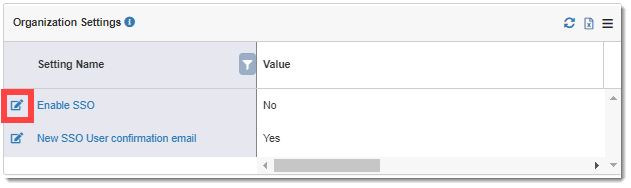
of applicable setting under the Setting Name column.
Edit icon
of applicable setting under the Setting Name column. You can edit the following SSO settings:
· Enable SSO – enables the SSO feature
· New SSO user confirmation email - allows email notifications for the newly created SSO user
To edit SSO settings:
1. Access the Settings page. (See Configure TrialMaster Settings for guidance.)
2. Click the
Edit icon
of applicable setting under the Setting Name column.
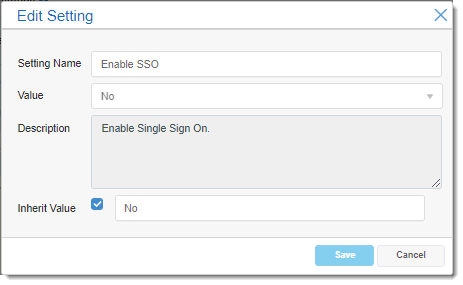
The Edit
Setting dialog displays. To expand the Description
field, drag the  icon.
icon.
3. Do the following to complete the dialog:
· Select Yes/No from the Value drop-down to enable/disable the setting.
· If you want to change the inherited (default) value of the setting, uncheck the Inherit Value check box and enter the new value.
· Click the Save button. A confirmation message displays at the top of the page.