Main Menu icon (top left).
You can view/edit details about each patient form, such as the OID (Object Identifier), visit type, whether the visit is scheduled, forms included in the visit, minimum/maximum number of form occurrences, and dynamic visits.
To view/edit patient form details:
1. Click the
Main Menu icon (top left).
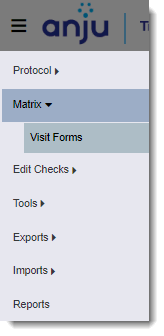
2. Go to Matrix > Visit Forms.
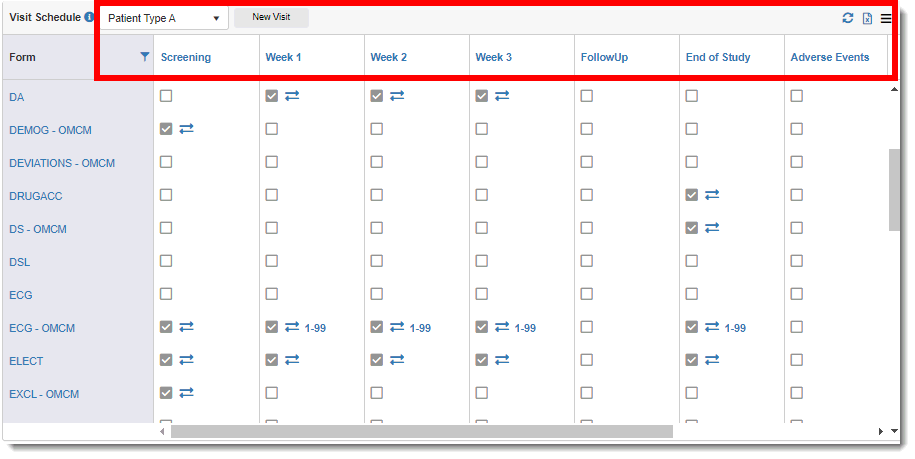
The Visit Schedule page displays the list of forms. If the form has an associated visit, the applicable check box is selected under the corresponding column. In this example, the Demography form (DEMOG - OMCM) has Screening visit associated with it.
3. Select the patient type from the drop-down list at the top left of the page.
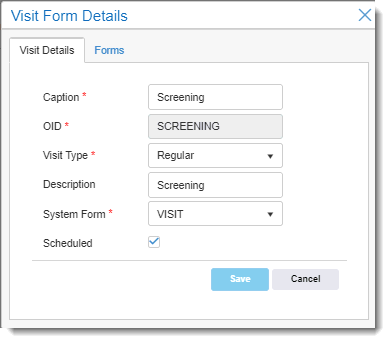
4. Click on the applicable visit in the column header. The Visit Form Detail dialog (Visit Details tab) displays the visit form caption, OID, visit type, description, system form, and whether the visit is scheduled (indicated by a check mark).
· To edit information:
o Select the applicable fields from the drop-down lists except for the OID, which is non-editable.
o Select/de-select the Scheduled check box to indicate whether the visit is scheduled/not scheduled respectively.
o Click the Save button.
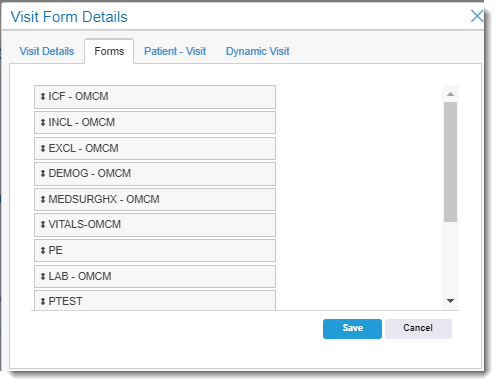
5. To view the order of form occurrences in the visit, click the Forms tab. To change the order, drag the applicable form field to the desired location, and then click the Save button.
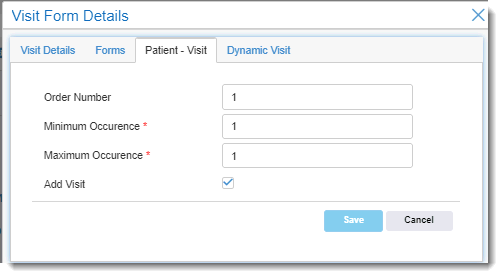
6. To view the form order and minimum/maximum number of occurrences, click the Patient - Visit tab.
· To edit information:
o Enter the new values in the applicable fields.
o Select/de-select the Add Visit check box to allow the TrialMaster user to add/not add a visit.
o Click the Save button.
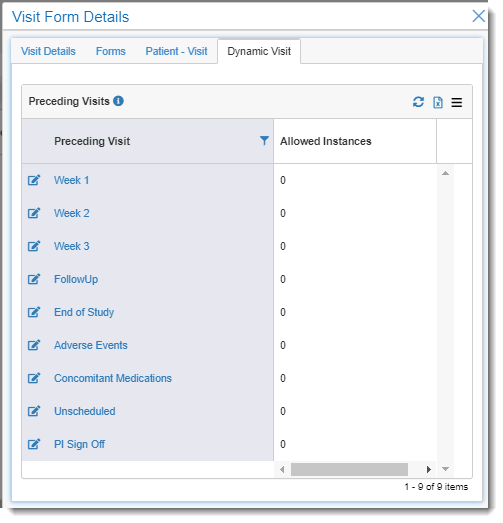
· To view the dynamic visits, click the Dynamic Visit tab.
To edit the allowed instances of a visit, click the  Edit icon of the applicable visit
and do one of the following:
Edit icon of the applicable visit
and do one of the following:
o Click the Save button to finalize your change.
o Click the Save & Next button to go to the next visit and edit the instances. You may continue clicking this button to go to each visit.